Make custom cookie cutters online without CAD
CutterForge is an online cookie cutter maker for fast custom designs. Choose the workflow that matches your source, preview the cutter, and export an STL from your browser.
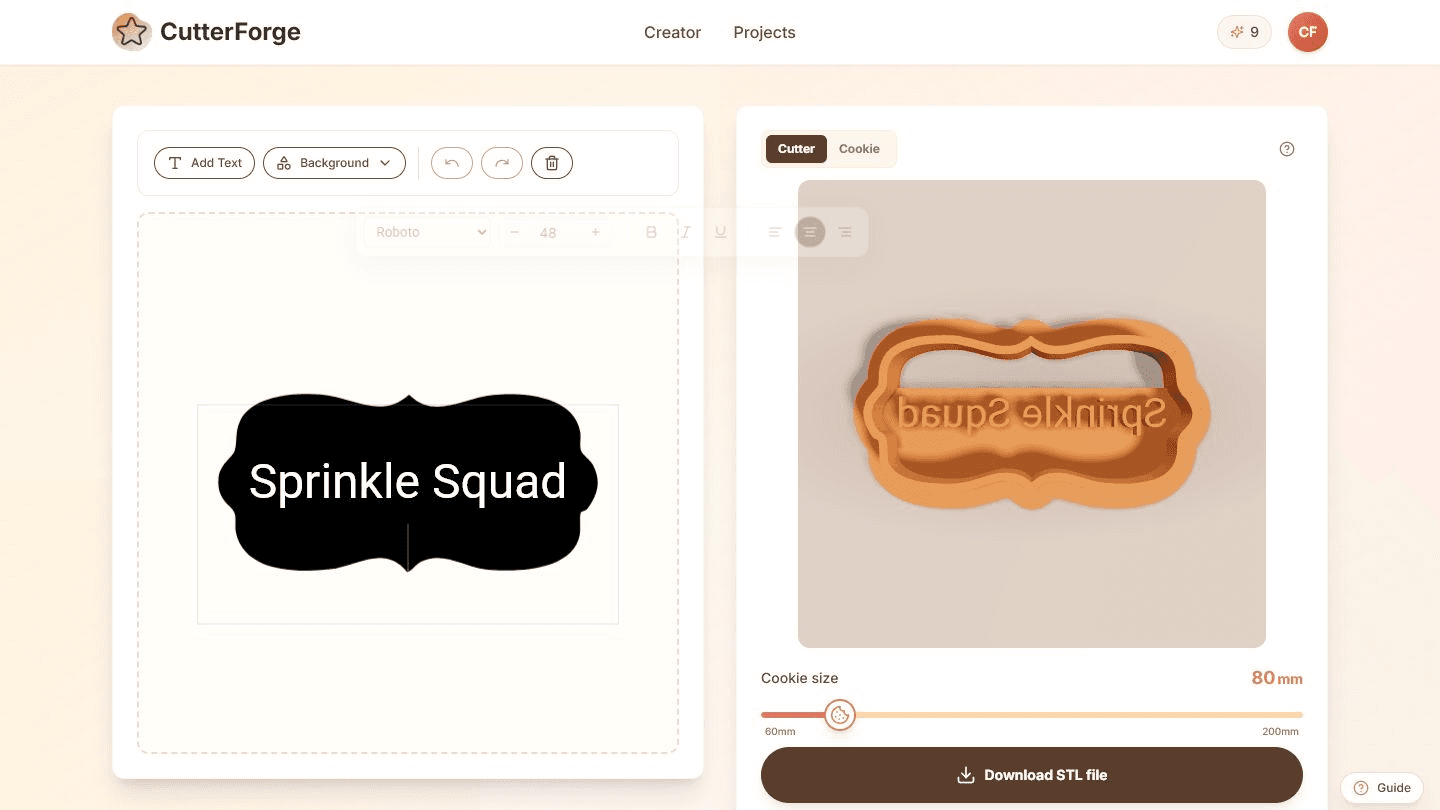
Built for the real path from idea to cookie cutter.
The online workflow removes the need to draw cutter walls manually in CAD for common custom cutter jobs.
Different inputs need different handling. A prompt, logo, photo, and text phrase should not all use the same conversion path.
Use CutterForge for gifts, events, bakery tests, and marketplace ideas when speed matters.
Four steps, then a file you can print.
- 01
Start in the browser without CAD setup.
- 02
Pick AI, image, photo, logo, or text.
- 03
Preview and size the cutter.
- 04
Download the STL for slicing.
Useful for more than one shape.
What this workflow produces
Example input
A browser-based project starting from a photo, logo, prompt, or phrase.
Example output
A custom STL cutter file and saved project preview without using desktop CAD.
Export details before you print
Files you get
- STL cutter
- Preview thumbnail
- Saved project
Inputs supported
- AI prompts
- PNG
- JPG
- Photos
- Text
- Logos
Slicers and printers
STL exports can be prepared in Bambu Studio, PrusaSlicer, OrcaSlicer, Ultimaker Cura and similar slicers for printers such as Bambu Lab, Prusa, Creality, Anycubic, Elegoo.
Most online-generated cutters should start in the 0.8-1.2 mm range, then be adjusted for size and print settings.
Printing tips
- Use the simplest workflow for your source.
- Save promising versions before experimenting.
- Validate final scale and wall strength in your slicer.
Limitations to know
- Browser generation does not replace slicer inspection.
- Complex artwork can still need cleanup.
- Exact engineering tolerances should be checked in dedicated CAD if required.
AI, image upload, or text mode?
Use AI when
Use AI for a new design idea.
Use image upload when
Use image/photo/logo upload for existing visual source material.
Use text mode when
Use text mode for names, labels, and short phrases.
Avoid weak cutter files
Using AI when exact supplied artwork is required.
Uploading complex artwork instead of simplifying it first.
Skipping printer-specific slicer settings.
Assuming every online preview will print well at every size.
Common questions
Can I make cookie cutters online?
Yes. CutterForge runs in the browser and exports STL files for slicing.
Do I need CAD software?
No. The common cutter workflows are handled online, though you can still use CAD later for advanced edits.
What files can I start with?
You can start with prompts, PNG/JPG images, photos, logos, or text depending on the workflow.
Can I use the output in Cura or PrusaSlicer?
Yes. Download the STL and open it in your slicer of choice.
Is online generation good for Etsy sellers?
It can help with prototyping and custom requests, but sellers should check rights, print quality, and marketplace rules.
What is the biggest quality factor?
The quality of the source and the final slicer review both matter. Clean inputs and practical wall thickness produce better prints.