Create Text and Name Cookie Cutters as STL Files
Use CutterForge to turn names, short messages, labels, initials, and event phrases into printable STL cookie cutters. Design text visually, preview the cutter geometry, adjust the size, and export the file for your slicer.
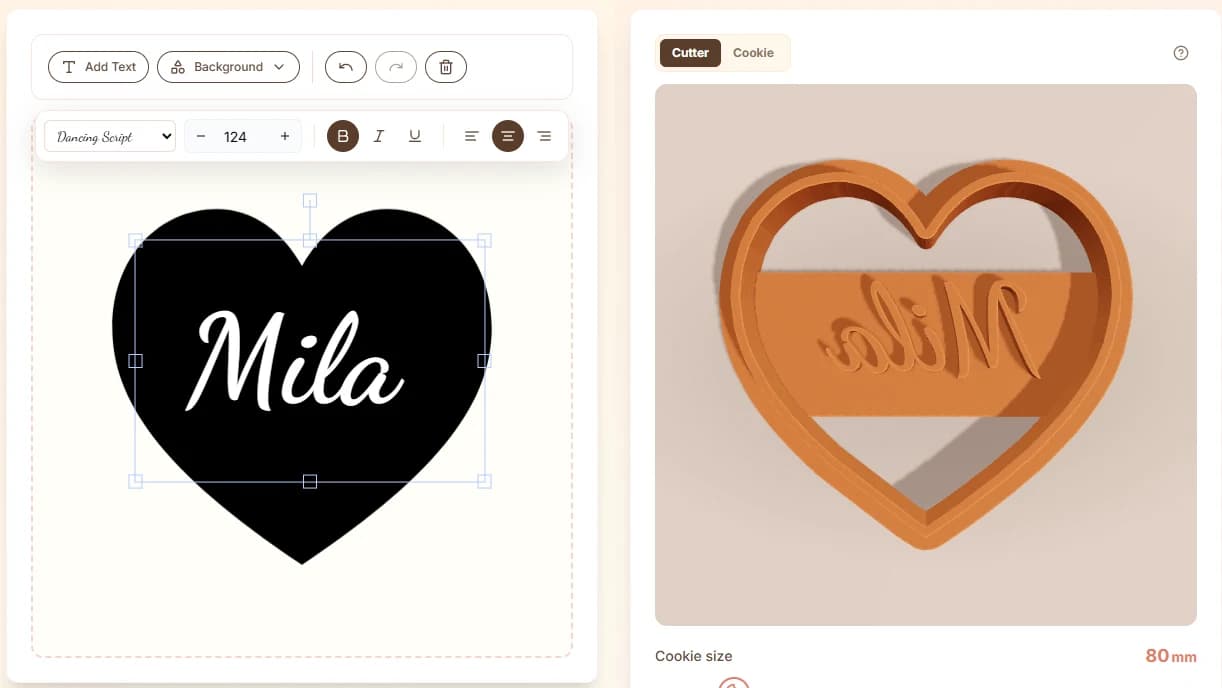
Built for the real path from idea to cookie cutter.
Text cutters need bolder strokes and enough spacing so dough releases and letters remain recognizable after baking.
Create multiple names or event labels without rebuilding the shape manually in CAD.
A phrase that is easy to read at 140 mm may fail at 60 mm, so preview at final cookie size before printing.
Four steps, then a file you can print.
- 01
Type a short name, number, or phrase.
- 02
Choose a sturdy layout that remains readable.
- 03
Preview the cutter and adjust size.
- 04
Download the STL and inspect letter details in your slicer.
Useful for more than one shape.
What this workflow produces
Example input
A name like "Emma", a number like "7", or a short phrase like "Team Bride".
Example output
A text cutter STL with printable strokes and spacing sized for the chosen cookie dimensions.
Export details before you print
Files you get
- STL text cutter
- Project thumbnail
- Editable saved project
Inputs supported
- Names
- Numbers
- Short phrases
- Labels
Slicers and printers
STL exports can be prepared in Bambu Studio, PrusaSlicer, OrcaSlicer, Ultimaker Cura and similar slicers for printers such as Bambu Lab, Prusa, Creality, Anycubic, Elegoo.
Use 1.0-1.2 mm for most text cutters and avoid scaling letters below what your nozzle can resolve.
Printing tips
- Use bolder text for smaller cookies.
- Keep phrases short for better dough release.
- Check internal letter holes and bridges in slicer preview.
Limitations to know
- Long sentences are usually not practical as cutters.
- Thin script fonts can create fragile geometry.
- Very small punctuation may be lost or hard to clean.
AI, image upload, or text mode?
Use AI when
Use AI for illustrated subject matter around a theme.
Use image upload when
Use image upload for custom lettering that already exists as artwork.
Use text mode when
Use text mode for editable names, numbers, and short phrases.
Avoid weak cutter files
Making the phrase too long for the cookie size.
Choosing a font with extremely thin strokes.
Ignoring counters inside letters before printing.
Using text mode for a complex logo instead of image upload.
Common questions
Can I make a name cookie cutter?
Yes. Names are one of the best uses for the text cookie cutter generator.
How long can the text be?
Short words and phrases work best. Long sentences need large cutters and may be difficult to clean or print.
What font style works best?
Bold, simple letterforms work better than delicate scripts or high-contrast display fonts.
Does the text tool export STL?
Yes. Finished text cutters can be downloaded as STL files for slicing.
Can I edit the text later?
Saved projects can keep editable state so you can return to the text design later.
When should I use image upload instead?
Use image upload when the text is part of a finished logo or custom hand-lettered artwork.